GPT Image 2 Prompting Guide: 12 Techniques From OpenAI's Cookbook
GPT Image 2 launched on April 21, 2026 as OpenAI's state-of-the-art image generation model — the recommended default for any new image workflow, with stronger generation quality, near-perfect multilingual text rendering, identity-sensitive editing, and flexible sizing up to a 4K hero. Alongside the model, OpenAI shipped an official prompting guide in the OpenAI Cookbook documenting the patterns that show up repeatedly in production use.
This article condenses that guide into twelve technique-driven examples you can copy directly. Every pattern below is grounded in OpenAI's public documentation: the prompt anatomy, the four supported prompt formats, the rules for in-image text, the constraints language for surgical edits, the multi-image referencing convention, and the iterative-refinement approach. Use it as a working reference, not a one-shot read.
The Anatomy of a GPT Image 2 Prompt
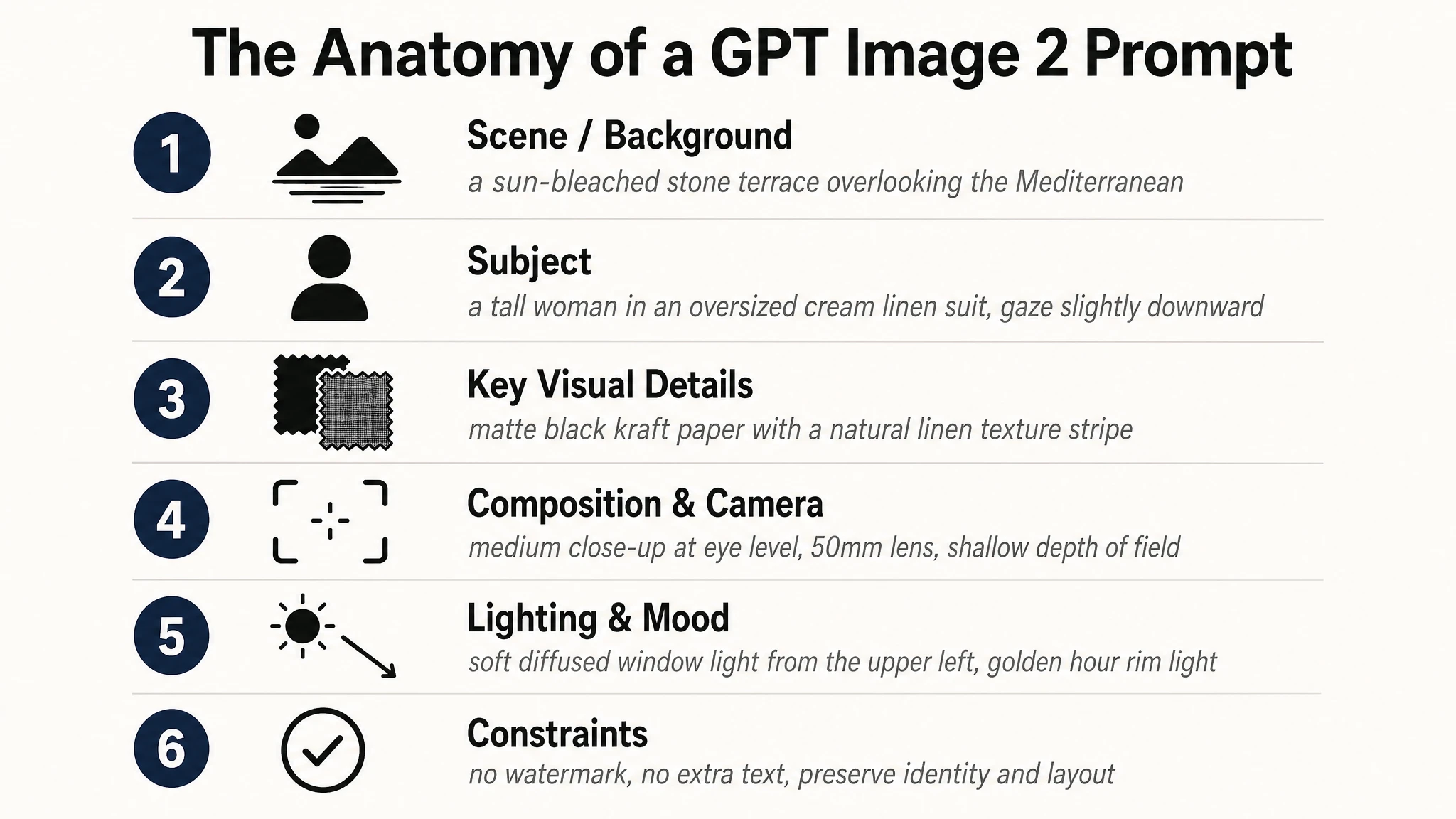
OpenAI's cookbook recommends a consistent structural order for every prompt: background and scene first, subject second, key visual details third, and constraints last. The model performs noticeably better when the prompt follows this order than when the same information is reshuffled into a free-form sentence, because the early tokens set the rendering "mode" — ad, UI mock, infographic, photograph — and later tokens then flesh out the detail.
The official guide also recommends explicitly stating the intended use of the asset ("a marketing ad for…", "a UI mockup for…", "an educational diagram for…"). That single line changes the level of polish, the typographic choices, and the composition the model picks by default.
- Scene / background — where the image takes place ("a sun-bleached stone terrace overlooking the Mediterranean").
- Subject — who or what is in the frame, including scale, pose, gaze, and action ("a tall woman in an oversized cream linen suit, gaze slightly downward").
- Key visual details — materials, textures, fabric, surface, color palette ("matte black kraft paper with a natural linen texture stripe across the center").
- Composition and camera — framing, viewpoint, perspective, focal length ("medium close-up at eye level, 50mm lens, shallow depth of field").
- Lighting and mood — direction, quality, time of day ("soft diffused window light from the upper left, golden hour rim light").
- Constraints — what to preserve, what NOT to add ("no watermark, no extra text, preserve identity and layout").
For complex prompts, OpenAI suggests using short labeled segments or line breaks instead of one long paragraph. A skimmable template is easier to maintain in production code and easier to debug when a single section needs tightening.
Four Prompt Formats That All Work
GPT Image 2 was trained to accept multiple prompt formats. The cookbook explicitly notes that minimal prompts, descriptive paragraphs, JSON-like structures, instruction-style prompts, and tag-based prompts can all work well, "as long as the intent and constraints are clear." For production systems the recommendation is to prioritize a skimmable template over clever syntax — pick one format and stay with it across your codebase.
| Format | When to use | Example fragment |
|---|---|---|
| Descriptive paragraph | Default for most use cases. Reads naturally, easy to edit. | "A photorealistic candid portrait of a man in his late 50s, weathered skin with visible pores and sun lines, soft window light from the upper left…" |
| Labeled-section instruction | Complex prompts with multiple distinct concerns (subject + brand + copy + constraints). | Scene: … / Subject: … / Style: … / Constraints: … |
| JSON-like / structured | Production pipelines where prompts are templated from app state. | { "scene": "…", "subject": "…", "text": "…", "constraints": ["no watermark", "no logos"] } |
| Tag-based | High-volume batch generation where speed of authoring matters more than nuance. | photorealistic, close-up portrait, 50mm, soft window light, no retouching, no watermark |
Example 1 — Invoking the Photorealistic Mode
GPT Image 2 has an explicit photorealistic rendering mode, and the most reliable way to engage it is to use the word "photorealistic" directly in the prompt. The cookbook also flags adjacent phrases — "real photograph," "taken on a real camera," "professional photography," "iPhone photo" — as effective alternatives.
Detailed camera specs (specific lens model, sensor size, ISO) are interpreted loosely; treat them as look-and-feel cues rather than physical simulation. The bigger lever for honest realism is naming the imperfections: pores, fine lines, asymmetry, fabric wear, available light. Anti-cues like "no glamorization" and "no heavy retouching" push the model away from the generic AI portrait look.
Prompt
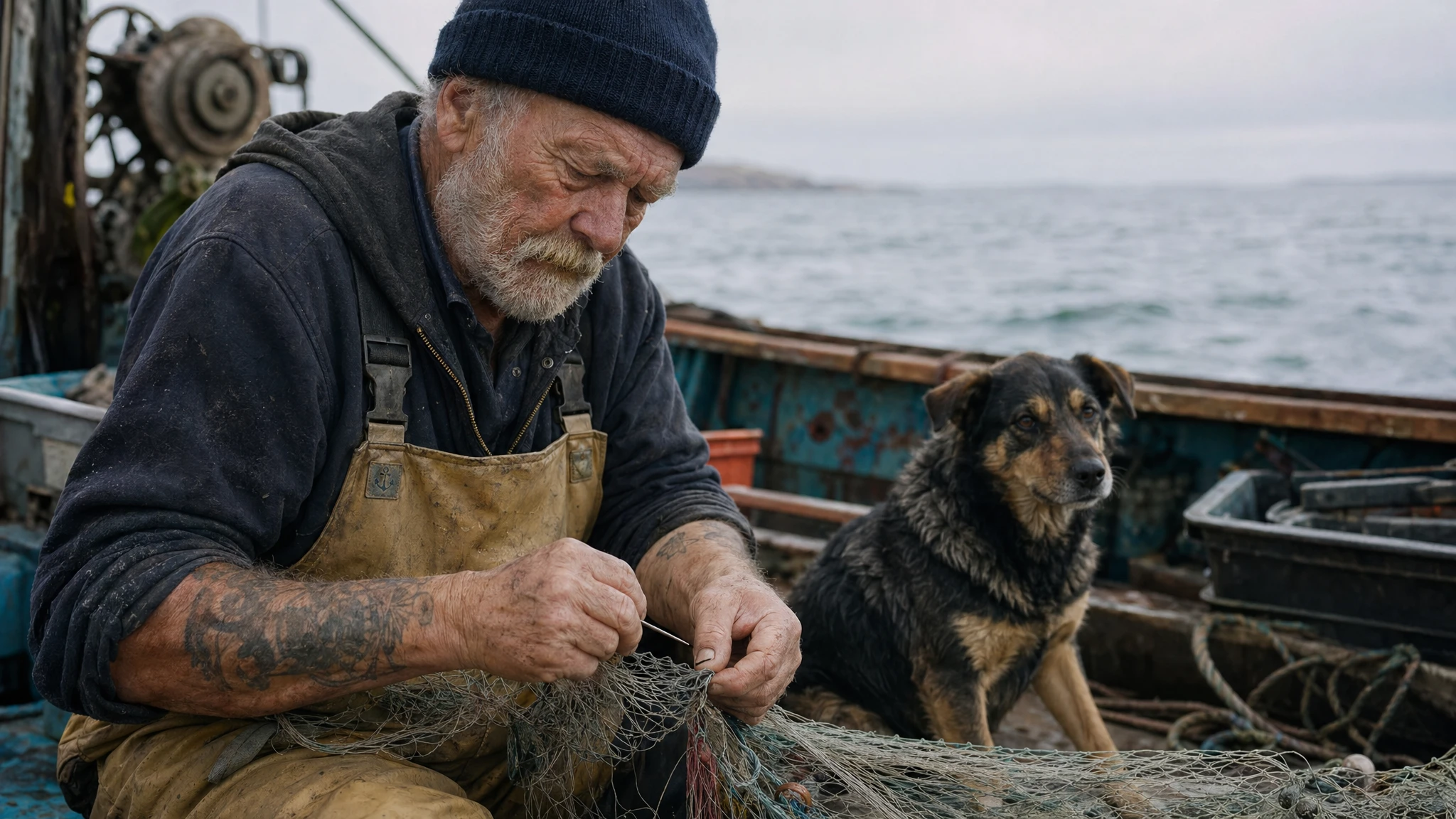
A photorealistic candid photograph of an elderly sailor standing on a small fishing boat. He has weathered skin with visible wrinkles, pores, and sun texture, and a few faded traditional sailor tattoos on his arms. He is calmly adjusting a net while his dog sits nearby on the deck. Shot like a 35mm film photograph, medium close-up at eye level, using a 50mm lens. Soft coastal daylight, shallow depth of field, subtle film grain, natural color balance. The image should feel honest and unposed, with real skin texture, worn materials, and everyday detail. No glamorization, no heavy retouching.
Why this works: the prompt names the medium (35mm, 50mm), the lighting condition (soft coastal daylight), and the specific anti-cues. Those three together pull the model into the documentary photography mode rather than the polished studio mode.
Example 2 — Composition Control
The cookbook is direct about composition: specify framing and viewpoint (close-up, wide, top-down), perspective and angle (eye-level, low-angle), and lighting and mood (soft diffuse, golden hour, high-contrast). When layout matters, name placement explicitly — "logo top-right," "subject centered with negative space on left." For wide, low-light, rain, or neon scenes, add scale, atmosphere, and color descriptors so the model does not trade mood for surface realism.
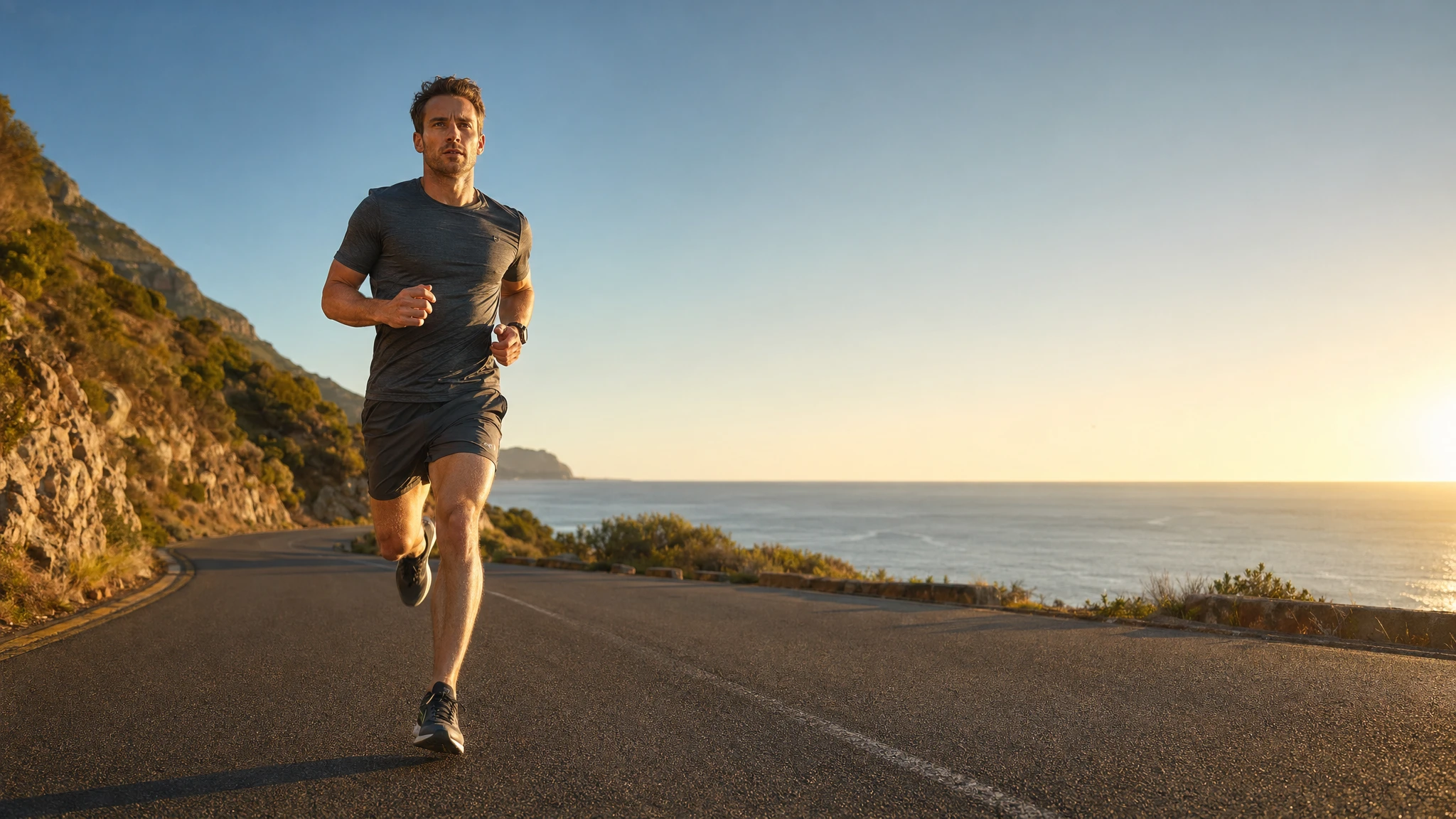
The example below combines all three composition layers in a single prompt: a defined framing (medium-wide), a defined viewpoint (low-angle), and a defined lighting style (golden hour key + soft fill).
Prompt
A photorealistic editorial sports photograph. Scene: a coastal road at golden hour, ocean horizon visible on the right. Subject: a long-distance runner in a charcoal grey training kit, mid-stride, captured running directly toward the camera. Framing: medium-wide, full body visible, feet included. Viewpoint: low-angle from the asphalt, about 30cm above the ground. Composition: subject placed left of center with generous negative space on the right two-thirds for headline copy later. Lighting: warm golden hour key light from camera-right, soft fill from the ocean reflection on the left, long subject shadow falling toward the lower-left corner. Lens look: 35mm equivalent, slight motion blur on the rear leg only, sharp on the face and chest. No watermark, no on-image text.
Example 3 — In-Image Text: Quoting and EXACT Verbatim
In-image text is GPT Image 2's biggest single capability gap from earlier models. The cookbook is specific about how to invoke it reliably: put literal copy in quotes or ALL CAPS, and specify typography details (font style, size, color, placement) as constraints. For tricky words — brand names, uncommon spellings, mixed-case product names — spell them letter-by-letter inside the prompt to boost character accuracy.
The single most useful add-on phrase is "EXACT, verbatim, no extra characters" applied to the literal copy. Without it, the model occasionally paraphrases or appends decorative additions; with it, the rendered text matches the prompt exactly. Use medium or high quality for small text, dense information panels, and multi-font layouts.
Prompt
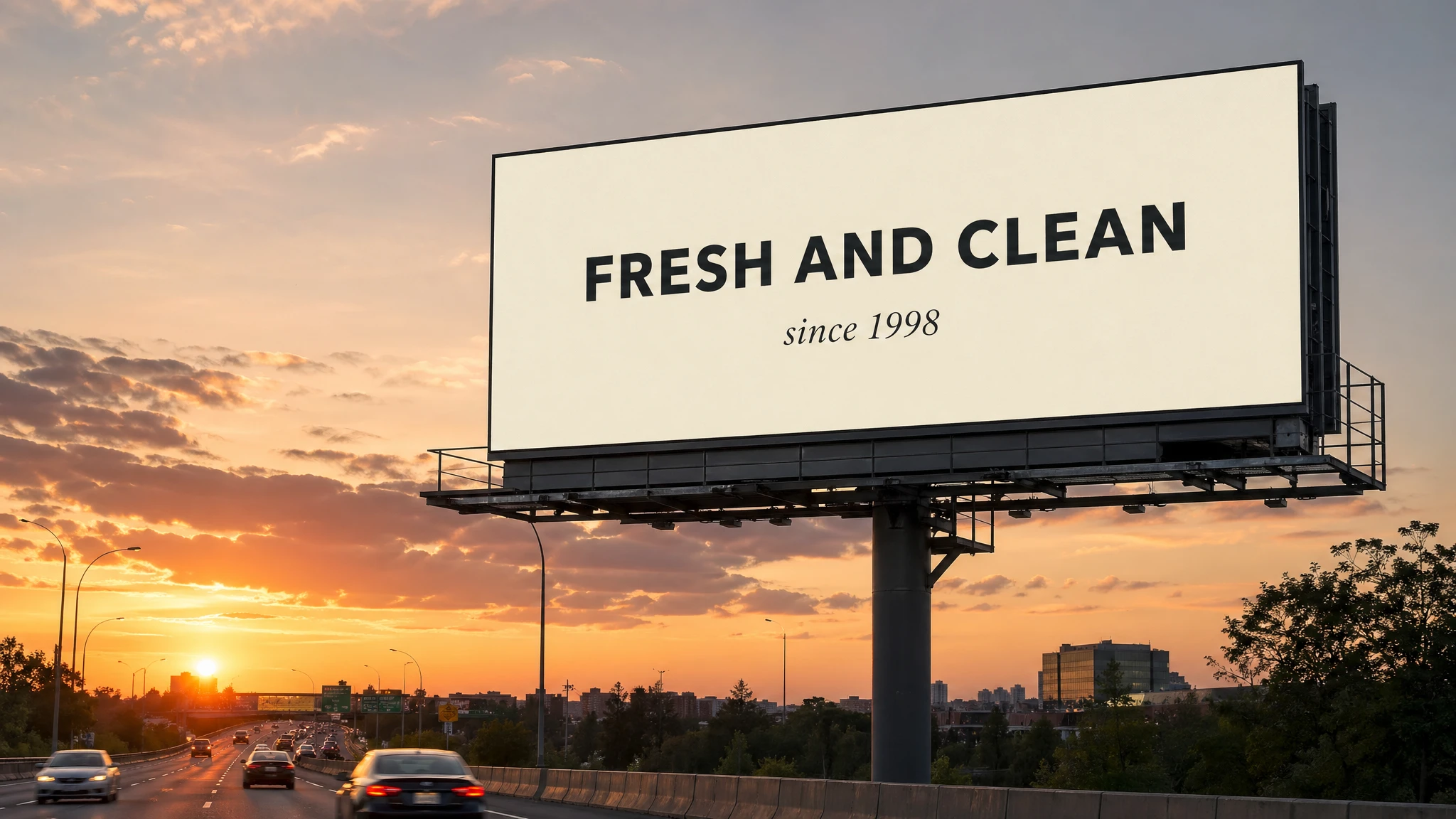
A photorealistic billboard mockup at the side of a highway during sunset. The billboard is mounted on a steel pole structure, with cars passing on the road below. Billboard headline (EXACT, verbatim, no extra characters): "FRESH AND CLEAN". Below the headline in smaller type (EXACT): "since 1998". Typography: bold geometric sans-serif for the headline, light italic serif for the tagline, both centered, clean kerning, high contrast on a soft cream background. Ensure each text element appears once and is perfectly legible. No watermarks, no extra logos, no decorative elements that obscure the type.
Tip from the cookbook: for tricky words like "F-U-T-U-R-E" or "L-U-M-I-È-R-E," spell them letter-by-letter in the prompt. The model treats each letter as an explicit instruction and character accuracy goes up materially on unusual or accented words.
Example 4 — Multilingual Text Rendering
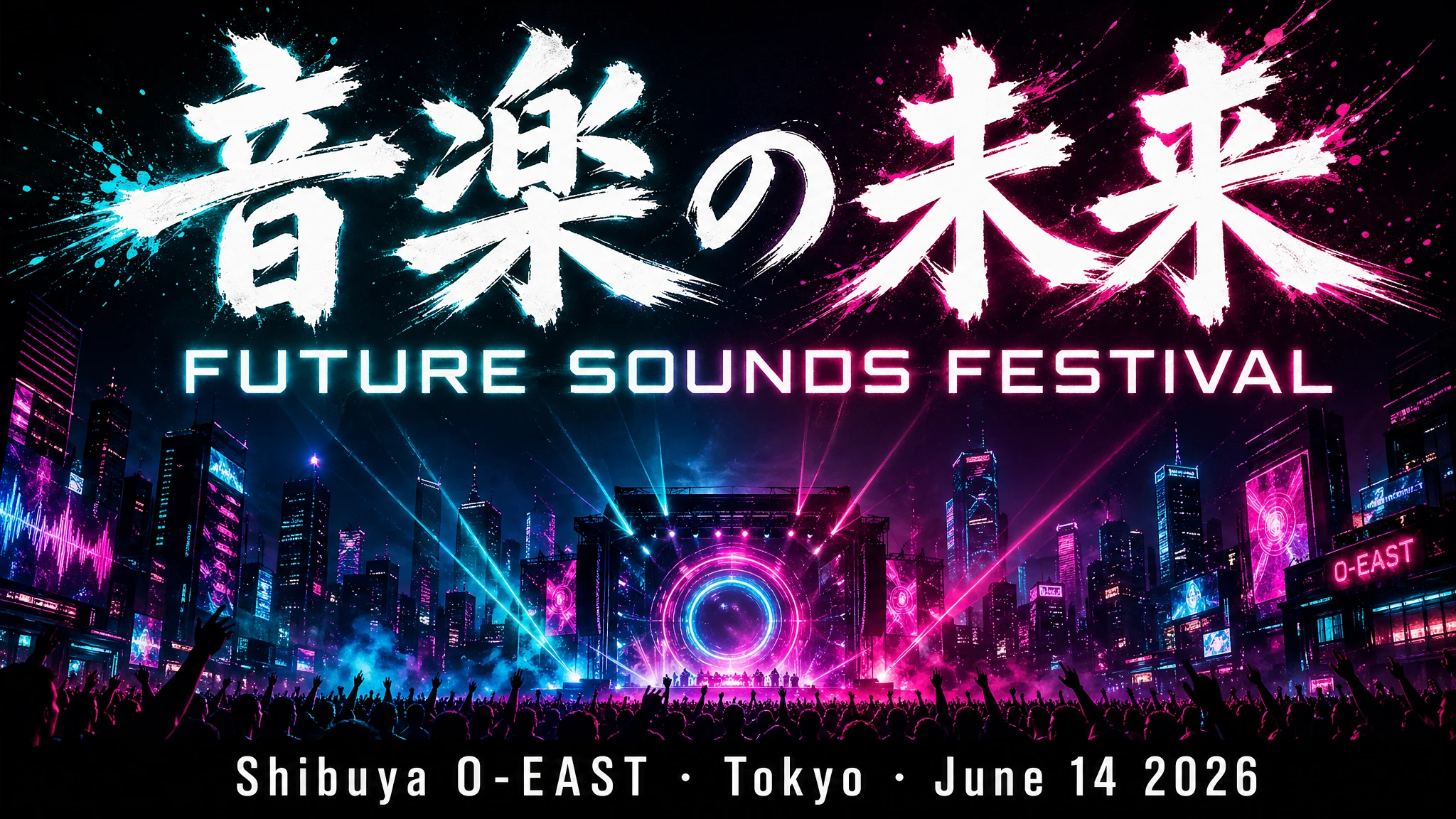
GPT Image 2's text rendering pipeline lays glyphs as vector shapes before rasterizing them into the scene, which is why English, Japanese, Korean, Arabic, Chinese, Turkish, and Hebrew all render correctly on the first attempt in most cases. The prompting rules are identical to Latin text: quote the copy, name the typeface family, call out placement, and invoke "EXACT, verbatim" if the script is sensitive (kanji stroke order, Arabic ligatures).
For mixed-script layouts, list each text element separately with its script, position, and typeface. The model handles the script-pairing and kerning automatically as long as the elements are unambiguous.
Prompt
A bold music festival poster, vertical orientation. Headline at the top third in large brushstroke kanji (EXACT, verbatim): "音楽の未来". Directly below in a clean geometric sans-serif (EXACT): "FUTURE SOUNDS FESTIVAL". Bottom strip in smaller white type (EXACT): "Shibuya O-EAST · Tokyo · June 14 2026". Dark background, electric teal and magenta neon glow. All text must be fully legible and correctly formed. No decorative elements that obscure the type. No watermark.
Example 5 — People: Scale, Pose, Gaze, and Action Geometry
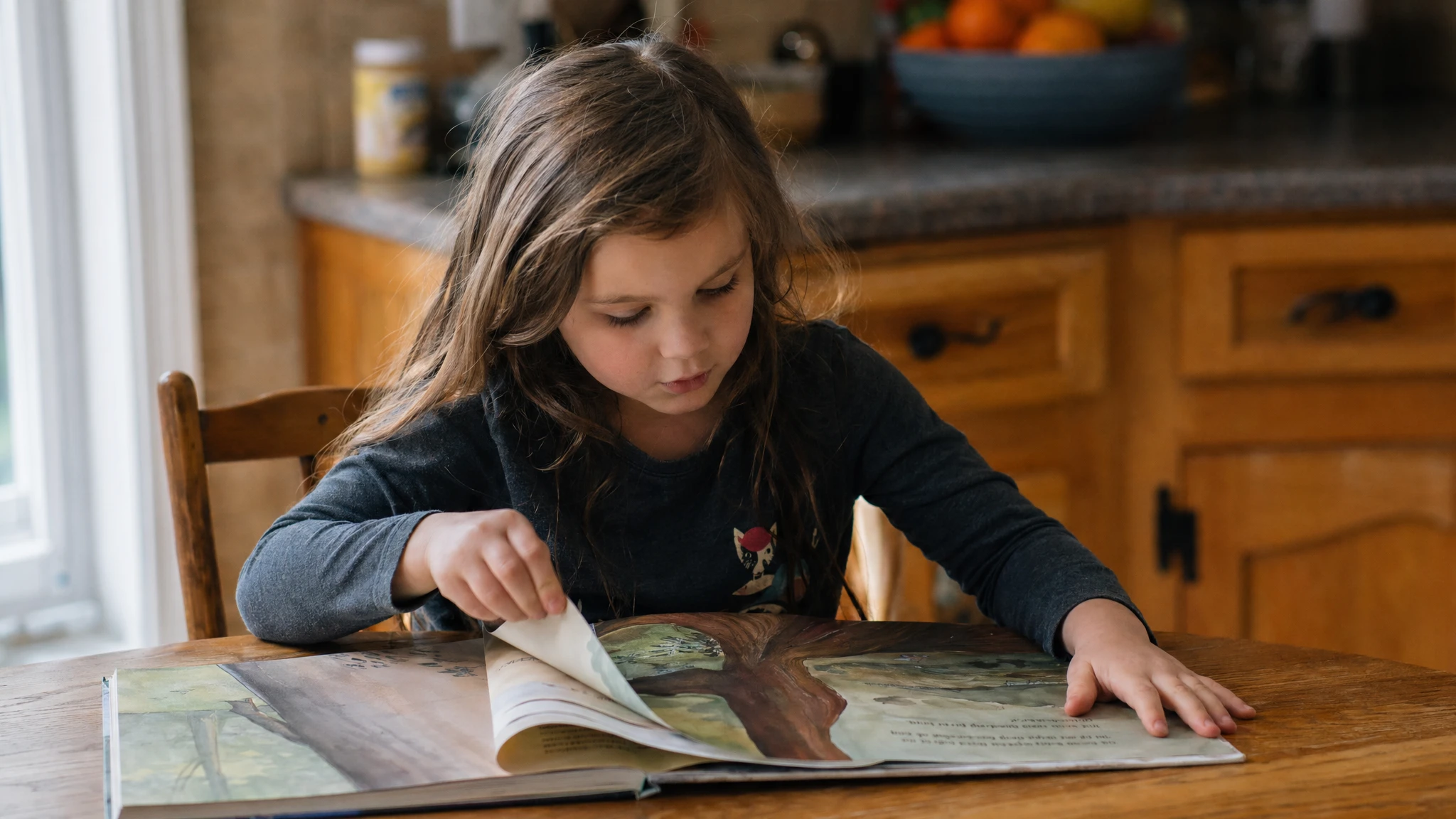
The cookbook calls this section out specifically: for people in scenes, describe scale, body framing, gaze, and object interactions. Generic phrases like "a person doing X" tend to drift on body proportion and limb articulation. Concrete phrases — "full body visible, feet included," "child-sized relative to the table," "looking down at the open book, not at the camera," "hands naturally gripping the handlebars" — pin down the geometry.
This is the difference between "two friends laughing" rendering as a stiff promo shot versus rendering as a believable in-the-moment photograph.
Prompt
A photorealistic candid photograph. Scene: a sunlit kitchen, late morning, soft window light from camera-left. Subject: a six-year-old child sitting at a wooden kitchen table, reading an oversized hardcover picture book. Scale and framing: child-sized relative to the table, the book takes up about half the visible tabletop, full upper body visible. Pose and gaze: leaning slightly forward on the elbows, looking down at the open book, not at the camera; right hand turning a page, left hand resting flat on the corner of the book. Action geometry: fingers naturally curled around the page edge, no over-rendered grip. Background: a slightly out-of-focus kitchen counter with a fruit bowl. Lens look: 50mm, shallow depth of field. No glamorization, no heavy retouching. No watermark.
Example 6 — Constraints: Original-Only, No-Trademarks Pattern
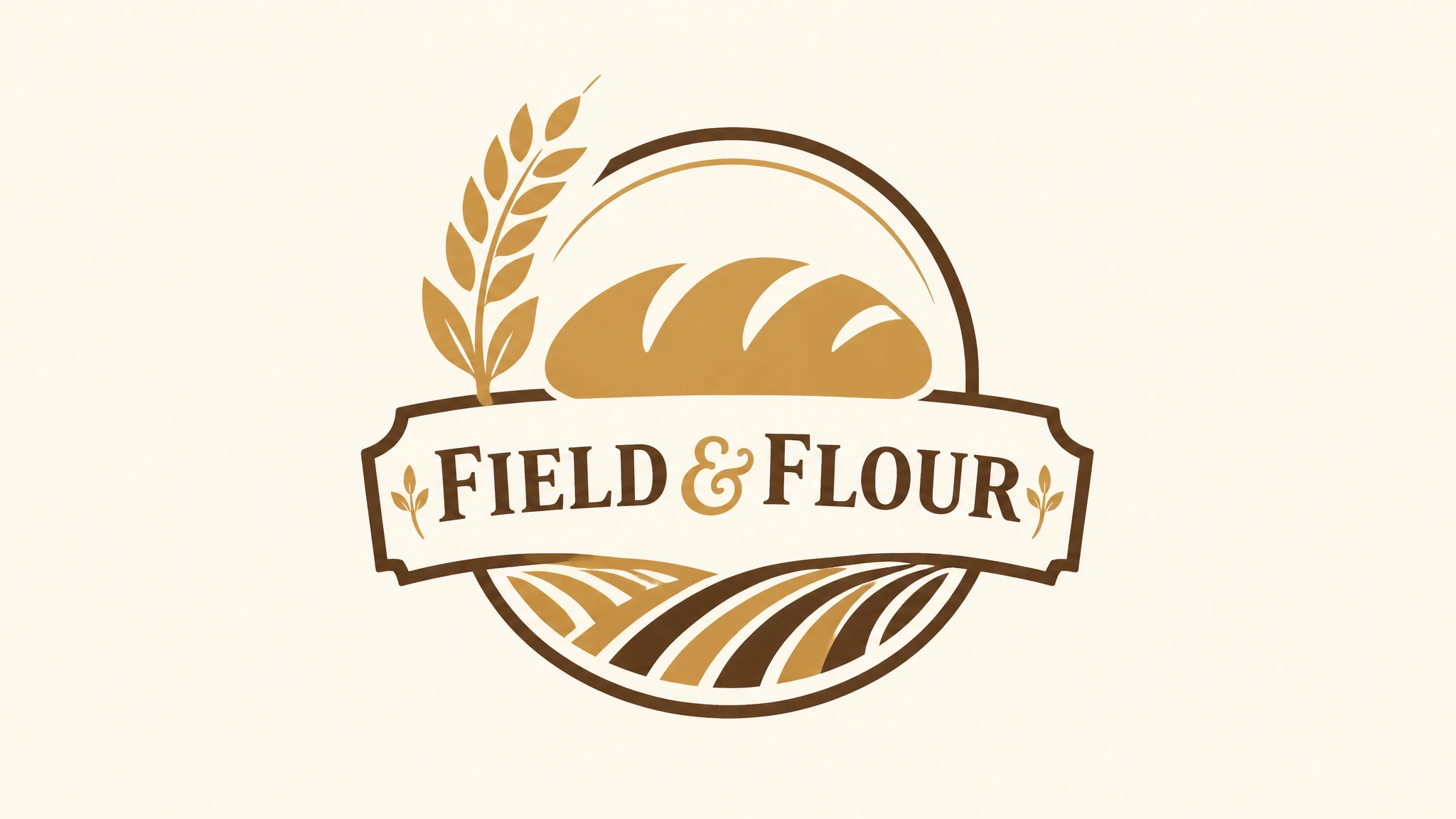
Constraints are the most underused part of GPT Image 2 prompting. The cookbook recommends stating exclusions and invariants explicitly: "no watermark," "no extra text," "no logos/trademarks," "preserve identity/geometry/layout/brand elements." For brand-mark and packaging work, the recommended template is to require an "original, non-infringing" mark, which steers the model away from regurgitating existing trademarked logos and toward a clean, original silhouette.
The other lever for logo work is asking explicitly for clean vector-like shapes, a strong silhouette, balanced negative space, and scalability across sizes — a one-line creative brief in prompt form.
Prompt
Create an original, non-infringing logo for a company called "Field & Flour", a local bakery. The logo should feel warm, simple, and timeless. Use clean, vector-like shapes, a strong silhouette, and balanced negative space. Favor simplicity over detail so it reads clearly at small and large sizes. Flat design, minimal strokes, no gradients unless essential. Plain background. Deliver a single centered logo with generous padding. No watermark, no trademarks, no extra text outside the brand mark.
In the API you can pass n=4 (or higher) to get multiple variants from one prompt in a single call. Useful for stakeholder review and exploratory branding rounds without rewriting the prompt four times.
Example 7 — Style Transfer From a Reference Image
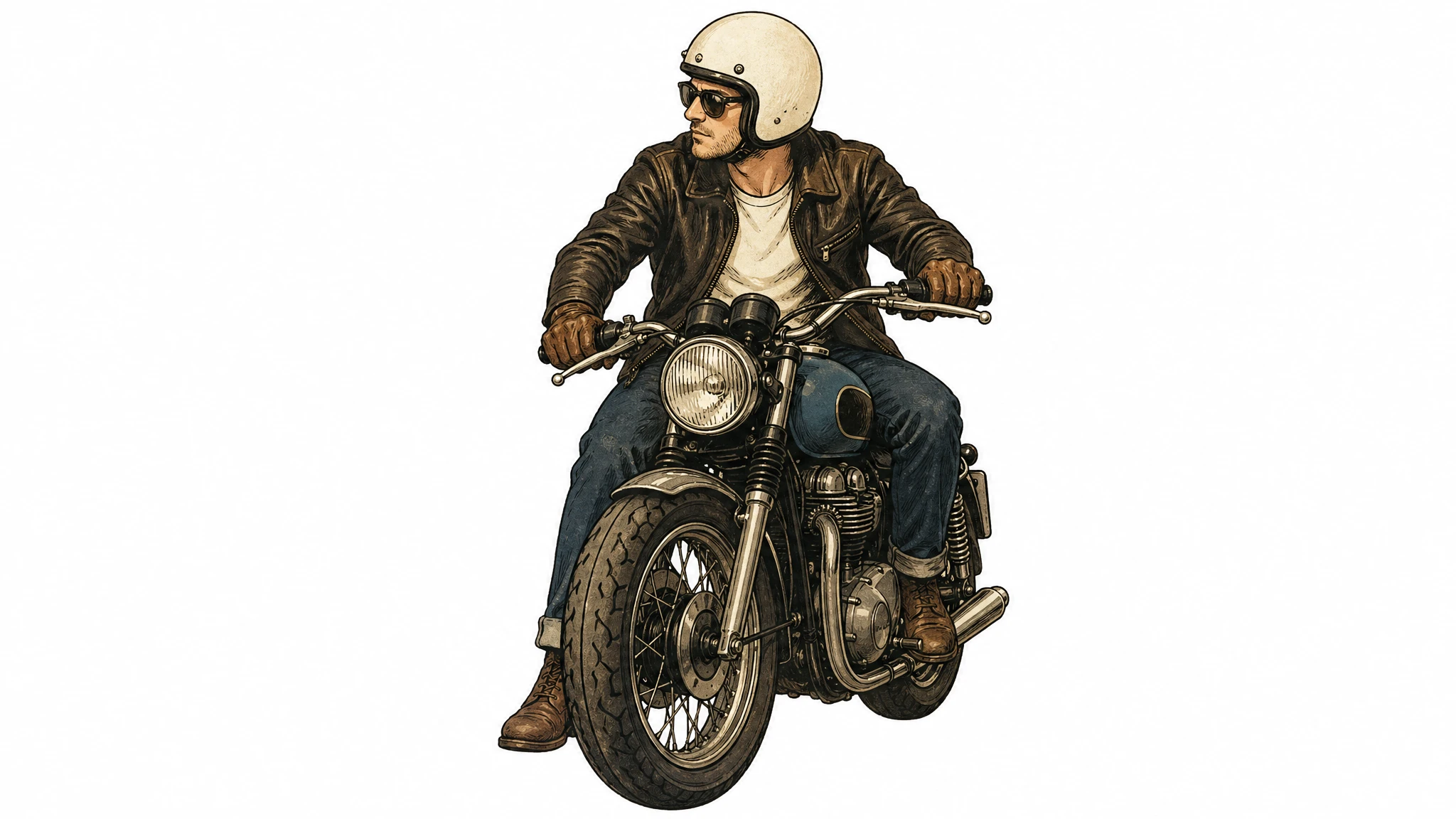
Style transfer is one of the cleanest GPT Image 2 edit patterns. You pass a reference image and a text instruction; the model preserves the visual language of the reference (palette, brushwork, line weight, texture, film grain) while replacing the subject. The cookbook is explicit about the prompting recipe: describe what must stay consistent (style cues) and what must change (new content), and add hard constraints — background, framing, "no extra elements" — to prevent peripheral drift.
The key phrasing is "use the same style from the input image and generate…" rather than "make this look like…", which the model sometimes interprets as a loose creative riff.
Prompt
Use the same style from the input image — same palette, brushwork, line weight, texture, and film grain — and generate a new subject: a man riding a motorcycle on a plain white background. Keep the visual style identical to the reference. Centered subject, generous padding, no extra elements, no text, no watermark.
Example 8 — Multi-Image Compositing With Indexed References
When you pass multiple input images to the /v1/images/edits endpoint, the cookbook's recommendation is to reference each input by index and description ("Image 1: product photo… Image 2: style reference… Image 3: target scene…") and describe how they interact ("apply Image 2's style to Image 1," "place the dog from Image 2 next to the woman in Image 1"). Be explicit about which elements move where.
This indexing convention is what unlocks the "insert this object/person into that scene" workflow without re-generating the whole frame. It also lets you combine three or four references in one call — for example, a person in image 1 dressed in garments from images 2, 3, and 4 — with the model treating each input as a distinct asset rather than blending them into one composite reference.
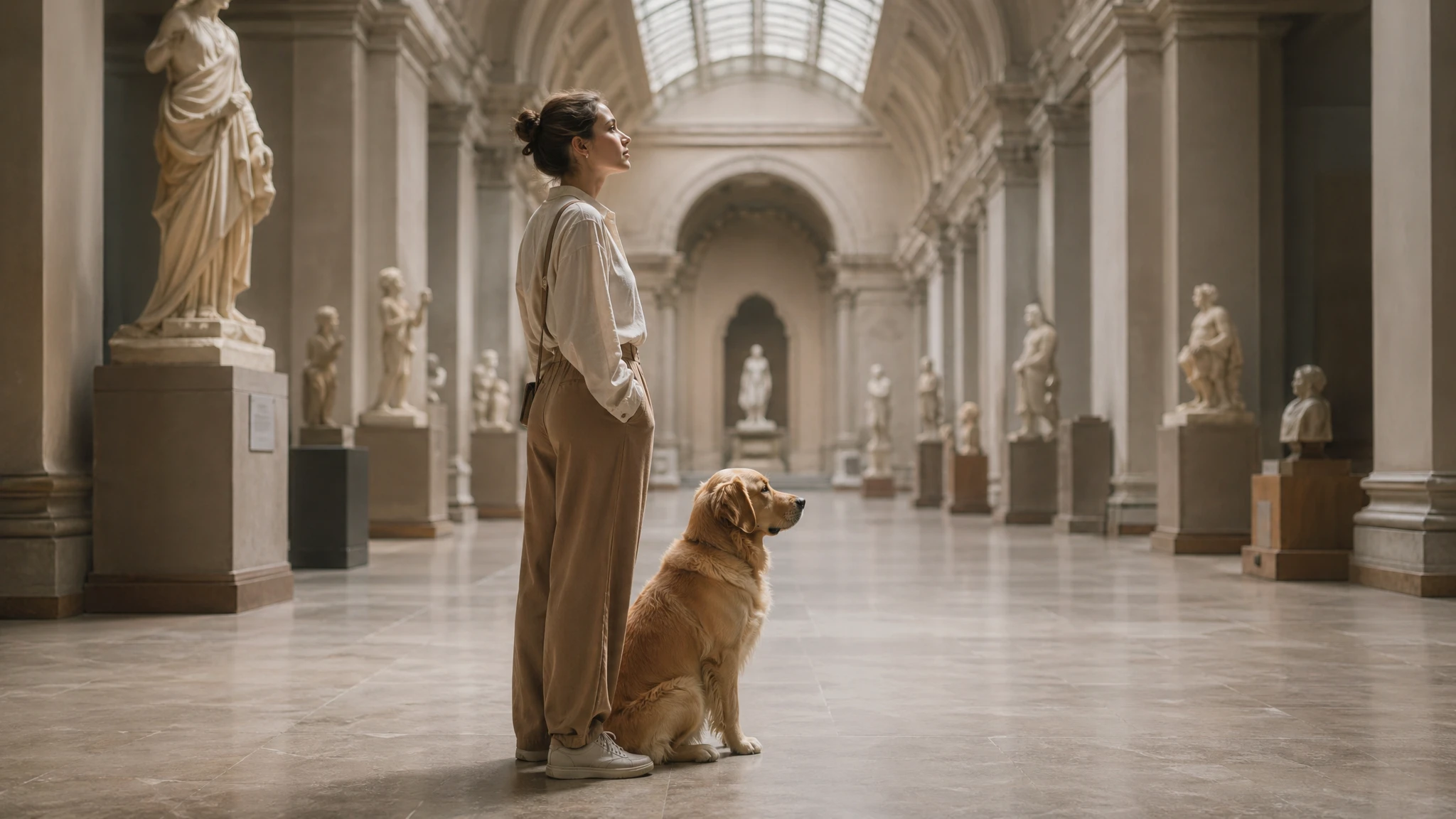
Prompt
Image 1 is the target scene: a woman standing in a museum hall under soft skylight. Image 2 is the asset to transplant: a golden retriever sitting in profile. Place the dog from Image 2 into the setting of Image 1, seated on the floor right next to the woman. Match the same style of lighting, shadow direction, color temperature, perspective, and depth of field as Image 1 so the dog looks naturally captured in the original photo. Do not change the woman, the museum hall, the camera angle, the framing, or any other element of Image 1. No watermark, no extra elements, no text.
Example 9 — Surgical Edits: "Change Only X, Keep Everything Else"
GPT Image 2 supports targeted edits without masks, but the prompt has to be tight to avoid drift. The cookbook's phrase-of-record is: "change only X" + "keep everything else the same" + repeat the preserve list on each iteration. For genuinely surgical edits — interior design swaps, object removals, label tweaks — also explicitly say not to alter saturation, contrast, layout, arrows, labels, camera angle, or surrounding objects.
The restated preserve list is what differentiates a clean first-pass edit from a near-miss that requires three retries. Repetition is intentional: the model treats both the change instruction and the preserve list as constraints, and listing the preserve elements twice raises the weight on each one.
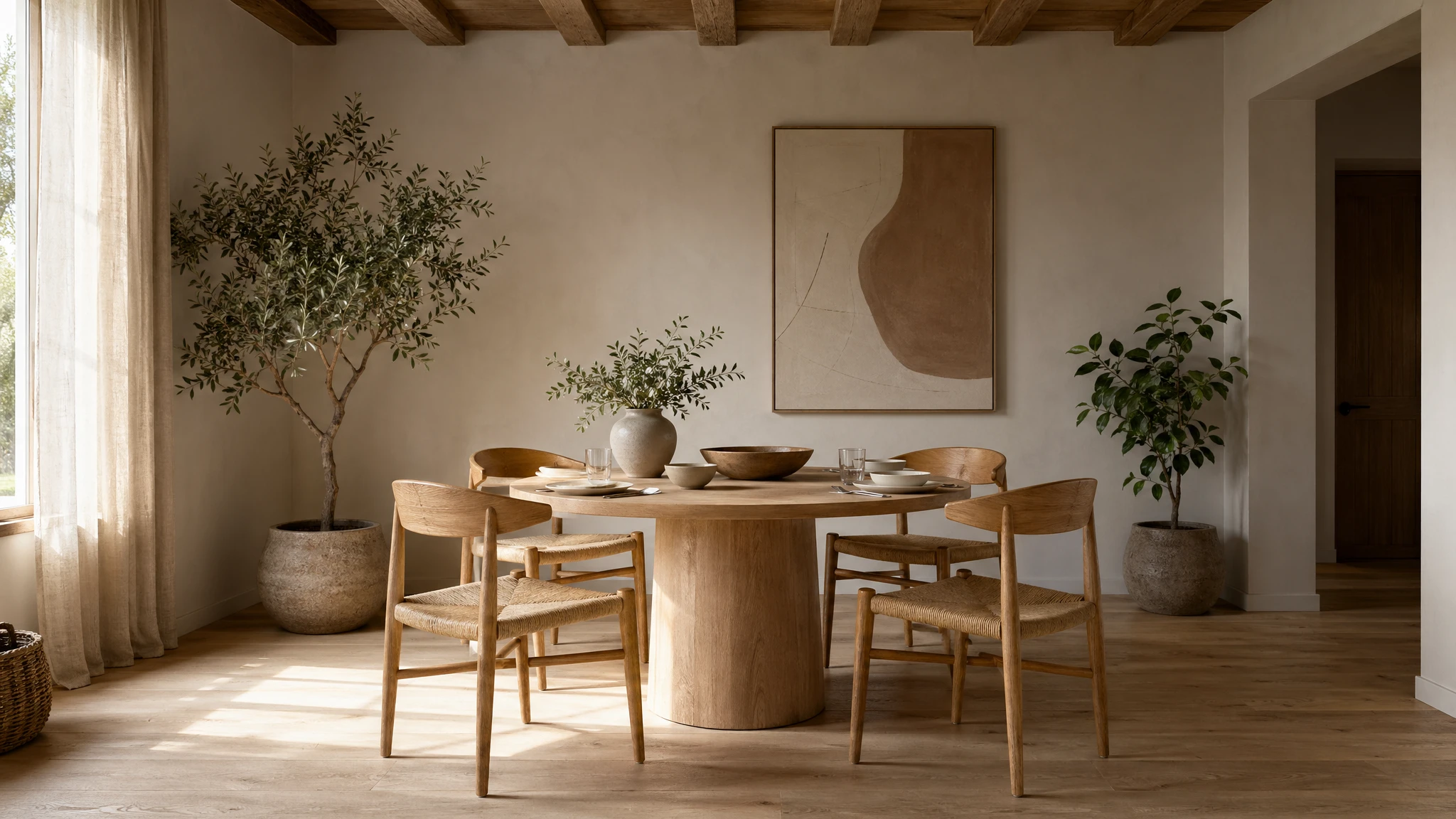
Prompt
In this room photo, replace ONLY the white chairs with chairs made of warm oak wood. Preserve the camera angle, room lighting, floor shadows, ceiling, walls, table, dishes on the table, plants, and every other object exactly as they appear. Do not alter saturation, contrast, layout, or any object that is not a white chair. Keep everything else in the image the same. Photorealistic contact shadows where the new wooden chair legs meet the floor, fabric and grain texture consistent with the existing room photography. No watermark, no on-image text.
Example 10 — Iterative Refinement Beats One Mega-Prompt
The cookbook explicitly warns against overloaded prompts: "Long prompts can work well, but debugging is easier when you start with a clean base prompt and refine with small, single-change follow-ups." The recommended pattern is to ship a clean first prompt at medium quality, then iterate with phrases like "make the lighting warmer," "remove the extra tree," "restore the original background." Use references like "same style as before" or "the subject" to leverage context — but re-specify any critical detail if it begins to drift.
This is the inverse of the design-tool reflex, where each pass adds more constraints. With GPT Image 2, each refinement pass should remove the noise from the prior pass and change at most one or two things. Multi-region simultaneous edits (three or more independent changes in a single call) are explicitly flagged as needing 2–3 iterations for a clean result.
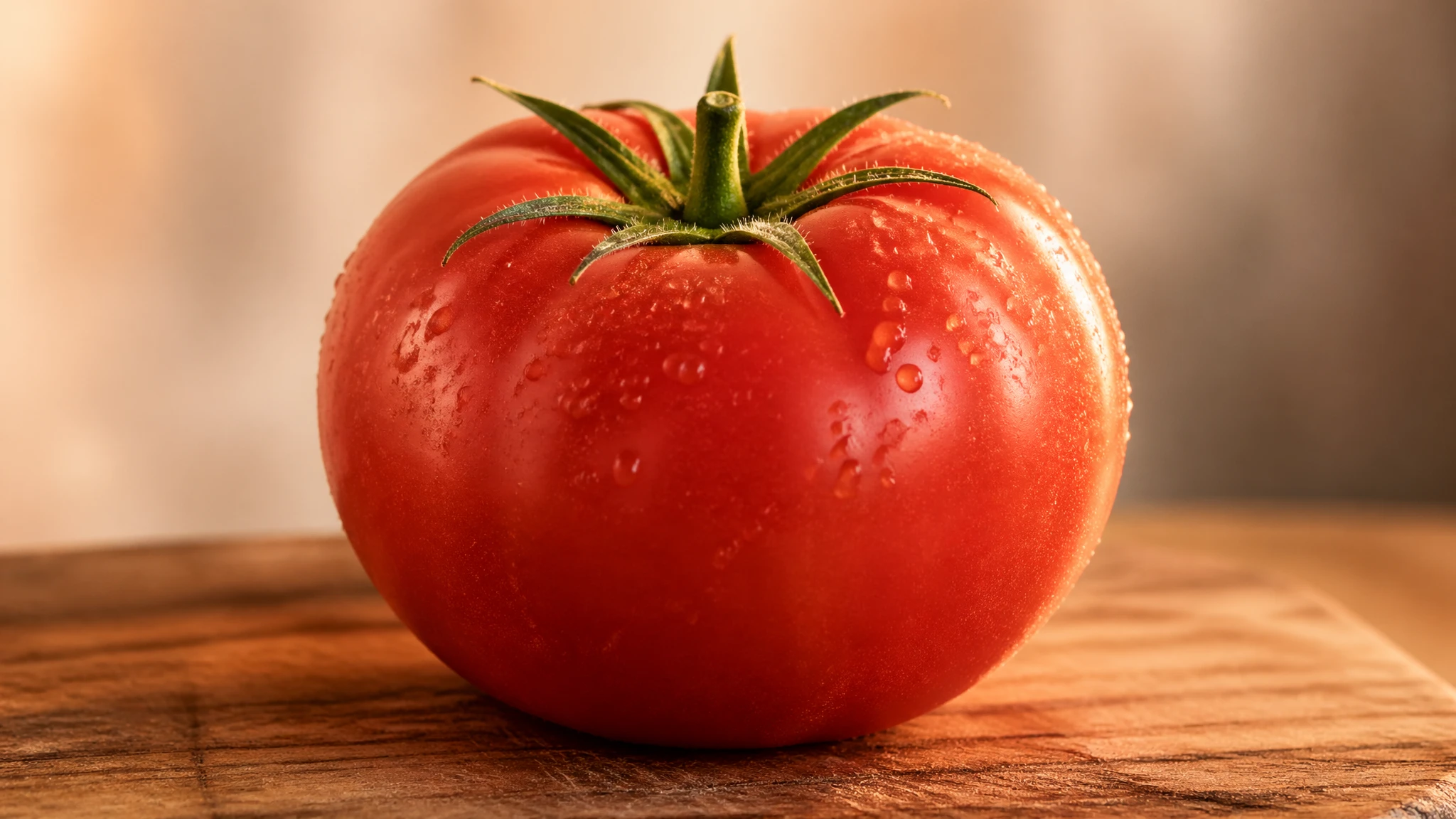
Prompt
Pass 1 (base prompt): A photorealistic still life of a single ripe tomato on a wooden cutting board, soft daylight from camera-left, 50mm lens, shallow depth of field, no watermark. Pass 2 (refinement, edit on output of Pass 1): Make the lighting warmer — shift toward golden-hour color temperature, add a subtle rim light on the right side of the tomato. Keep everything else the same: same tomato, same cutting board, same composition, same framing. Pass 3 (refinement, edit on output of Pass 2): Tighten the framing — crop in by about 20%, the tomato should fill more of the frame, cutting board still partially visible at the bottom. Do not change the lighting, color grade, or surface texture. Restate: keep the same tomato, the same cutting board grain, the same background.
Example 11 — Leveraging World Knowledge
A capability the cookbook calls out specifically: GPT Image 2 pairs strong reasoning with world knowledge, so you can prompt with situational cues — a date, a place, a notable event — and let the model infer the visual context without spelling it out. The canonical example in the official guide is "Bethel, New York on August 16, 1969," which the model correctly infers as Woodstock and renders with period-accurate clothing, staging, and environment.
This works for any well-documented event, place, or cultural moment within the model's knowledge cutoff (December 2025). For subjects that emerged after that date, the inference fails silently — the model will produce a plausible image that is factually wrong. For post-cutoff subjects, switch to providing a reference image instead of relying on world knowledge.
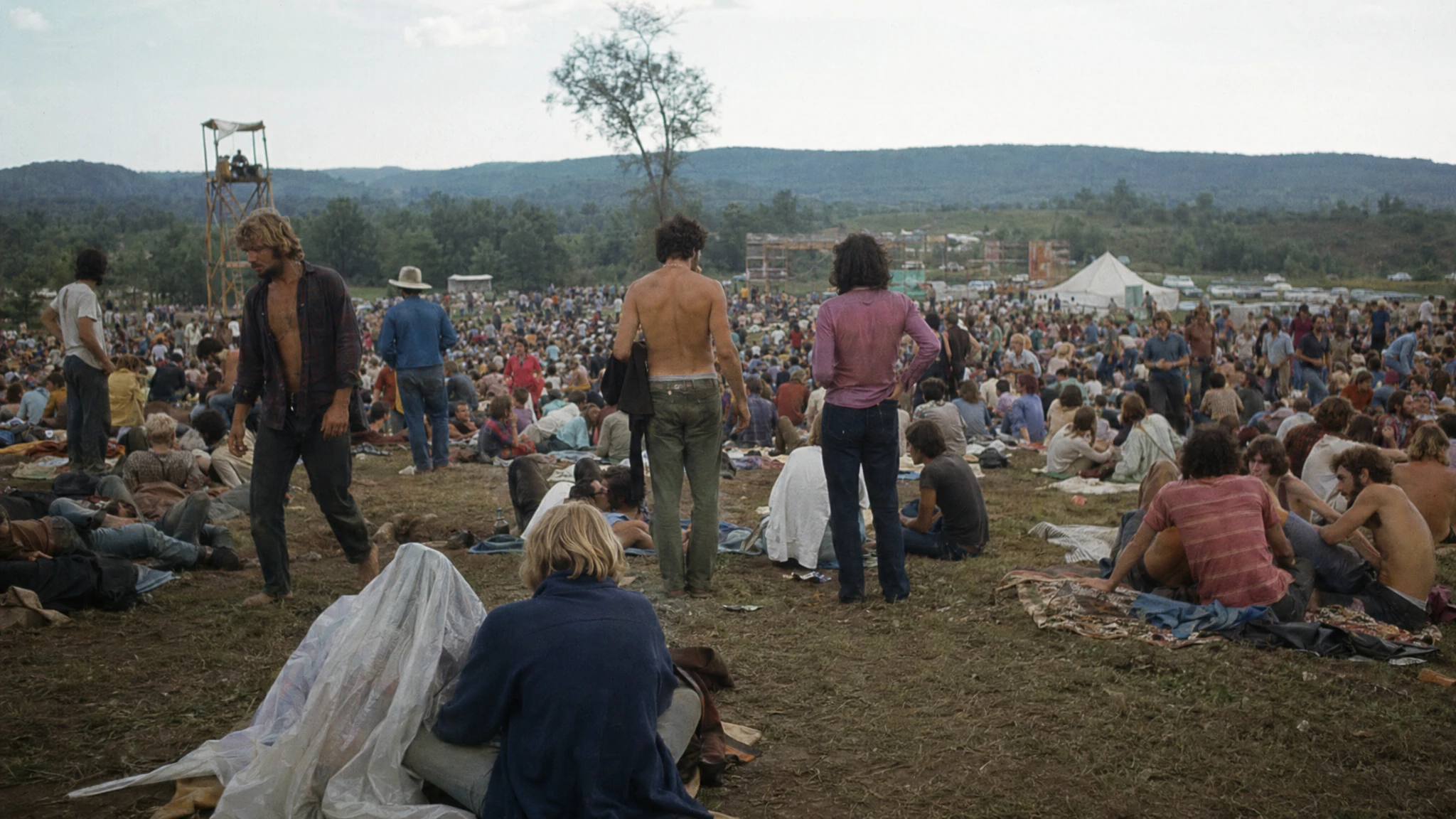
Prompt
Create a realistic outdoor crowd scene in Bethel, New York on August 16, 1969. Photorealistic, period-accurate clothing, staging, hairstyles, and environment. Shot like a 35mm film photograph, eye-level wide framing, natural daylight. The image should feel like a documentary photograph from the era — honest, unposed, slightly grainy, no cinematic color grading. No watermark, no on-image text, no anachronistic details.
Caveat from the cookbook: world knowledge is bounded by the December 2025 cutoff. For post-cutoff brand identities, product designs, or 2026 events, provide a reference image rather than relying on the model to infer the look. The model will not flag the gap — it will silently invent.
Example 12 — Structured Artifacts: Slides, Charts, Diagrams
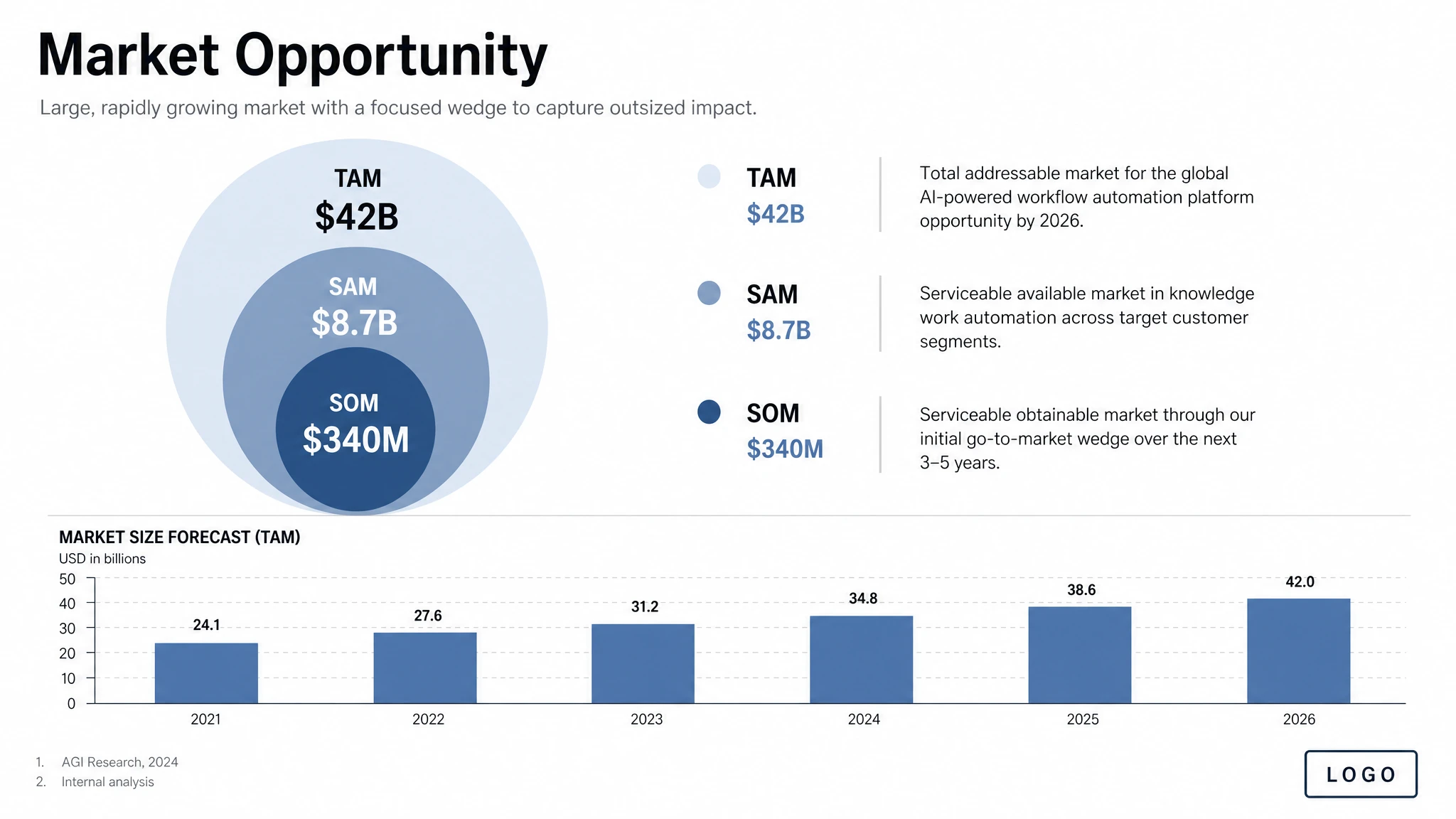
For productivity assets — slides, workflow diagrams, charts, infographics — the cookbook recommends writing the prompt like an artifact spec rather than an illustration request. Name the exact deliverable ("one pitch-deck slide titled 'Market Opportunity'"), define the canvas and hierarchy, supply the actual text and numbers, and describe the visual language. Include practical constraints: readable typography, polished spacing, no decorative clutter, no generic stock-photo treatment.
The model will not invent figures — it renders the values you supply as written. For data-heavy infographics, this means the burden of accuracy stays with you (or with a thinking-mode web search), not with the model. Use a landscape size for deck-style outputs and quality="high" when the image contains small text, legends, axes, or footnotes.
Prompt
Create one pitch-deck slide titled "Market Opportunity" that feels like a real Series A fundraising slide from a YC-backed startup. Use a clean white background, modern sans-serif typography like Inter, and a crisp, minimal layout. The slide should include: a TAM/SAM/SOM concentric-circle diagram in muted blues and grays; specific, believable market sizing numbers — TAM: $42B, SAM: $8.7B, SOM: $340M; a clean bar chart below showing market growth from 2021 to 2026 with a subtle upward trend; small footnotes "AGI Research, 2024" and "Internal analysis"; a company logo placeholder in the bottom-right corner. The design should look like it belongs in a deck that actually raised money: highly readable text, clear data hierarchy, polished spacing, professional startup-style visual language. Avoid clip art, stock photography, gradients, shadows, decorative elements, or anything that feels generic or overdesigned.
For data-heavy infographics where numbers must be accurate, include the literal numbers in the prompt. The model treats them as render targets, not suggestions, and will not silently round or replace them.
Quality and Size: Picking the Right Settings
GPT Image 2 exposes three quality levels — low, medium, and high — and accepts any size that meets four constraints: maximum edge length less than 3840px, both edges multiples of 16, long-to-short edge ratio not greater than 3:1, and total pixels between 655,360 and 8,294,400. Above 2560×1440 (2K), the cookbook flags results as experimental. Square images are generally fastest to generate.
The cookbook's top-line recommendation is to start at quality="low" for latency-sensitive or high-volume use cases and only escalate when fidelity is genuinely the bottleneck. Low is good enough for a wider range of work than most teams expect.
| Workflow | Recommended Size | Recommended Quality | Notes |
|---|---|---|---|
| Drafts, thumbnails, batch ideation | 1024×1024 | low | Fastest. The cookbook's default starting point. |
| Photorealistic portrait | 1024×1536 | high | Skin texture and identity detail need high. |
| Product photography | 1536×1024 | high | Label legibility requires high. |
| Marketing ad with in-image text | 1024×1024 or 1080×1350 | medium or high | High when copy density is large. |
| Packaging mockup | 1024×1536 | high | Multi-line text on a 3D surface needs high. |
| Infographic / educational diagram | 1536×1024 | high | Dense labels and legends need high. |
| UI mockup | 1024×1536 | medium | Layout-driven; medium suffices. |
| Pitch-deck slide | 1536×864 or 1536×1024 | high | Small text and legends need high. |
| Logo (multiple variants) | 1024×1024 | medium | Use the n parameter for variants in one call. |
| Multi-panel comic / storyboard | 1024×1536 | medium | Consistency across panels; medium is enough. |
| Edit / background swap / object removal | Match input | medium | Edits preserve input fidelity automatically. |
| 2K hero asset | 2560×1440 | high | Upper reliability boundary. |
| 4K hero asset | ~3824×2144 | high | Experimental; expect more variability. |
Common Pitfalls and How to Avoid Them
- Generic style boosters ("8K, ultra-detailed, masterpiece, cinematic") are mostly leftover patterns from earlier diffusion models. The cookbook is direct: spend that prompt budget on lighting, composition, and constraints instead.
- Asking for "perfect skin" or "flawless" produces the generic AI portrait look — plasticky, oversmooth, identity-light. Replace those words with explicit real-photo cues: "visible pores," "fine lines," "asymmetry," "available light," "no heavy retouching."
- Detailed camera specs (specific lens model, sensor size, ISO) are interpreted loosely. Use them for high-level look and composition, not for exact physical simulation.
- Forgetting to quote literal text. Without quotes, the model paraphrases. With quotes plus "EXACT, verbatim, no extra characters," it renders the words as written.
- Vague layout instructions ("make it look nice") lead to inconsistent results across reruns. Spell out positioning whenever you need predictable placement.
- Trying to change three or more independent regions in a single edit. The cookbook flags multi-region edits as needing 2–3 iterations. Break the edit into sequential single-change passes.
- Above 2560×1440, results are experimental — text rendering, fine detail, and prompt adherence become more variable. If you need a 4K hero, generate at 2K first and scale separately.
- Transparent backgrounds are not currently supported on gpt-image-2. Generate on an opaque background and run a downstream background-removal pass.
- Knowledge cutoff is December 2025. For post-cutoff subjects, provide a reference image rather than relying on world knowledge.
- Skipping the "preserve list" on iterative edits. Each refinement pass should restate the invariants — without that restatement, drift compounds across passes.
A Reusable Prompt Template
If you take one thing from this guide, take the template. It follows the cookbook's recommended structural order and works as a copy-paste starting point for almost every use case in this article:
Intended use → Scene / background → Subject (with scale, pose, gaze) → Key visual details (materials, textures) → Composition (framing, viewpoint, focal length) → Lighting (direction, quality) → Literal in-image text in quotes (EXACT, verbatim) → Constraints (preserve list / no watermark / no extra text).
Start at quality="medium" and a 1024×1024 square, run two generations to calibrate the prompt, then move to high quality and a non-square aspect ratio for the final asset. For refinements, edit the existing image with a natural-language instruction rather than regenerating from scratch — the latter is the single biggest source of brand drift in production work.